You open TikTok, swipe to the camera screen, and the LIVE button isn’t there. Maybe you tap it and see a message instead. If you are facing TikTok LIVE Not Available on your account, don’t worry. I’ve seen this on my own accounts and on many creators’ accounts I’ve helped, and the cause is usually simple.
The good news is that this problem usually has a simple cause. Let’s go through it step by step.
What Does “TikTok LIVE Not Available” Mean?
It means TikTok has not turned on the LIVE feature for your account right now. There are three common reasons:
- Your account doesn’t meet TikTok’s rules yet.
- Something is wrong with your app, phone, or internet.
- TikTok has limited your account, or the feature hasn’t reached you yet.
First, Check the Basic Requirements
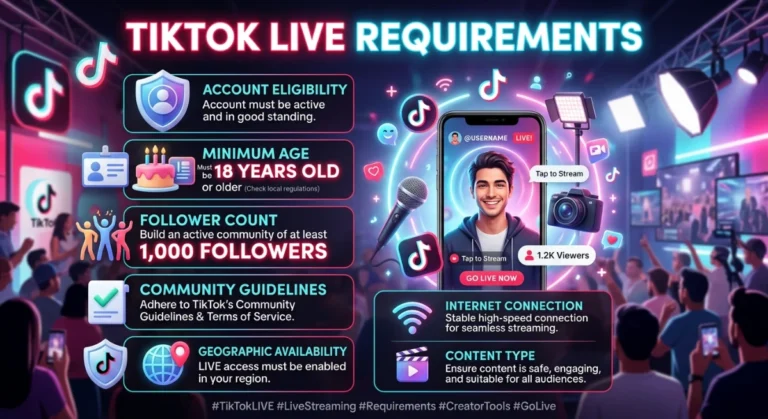
Most “LIVE not available” cases come from missing one of these. Requirements change by region and over time, so always check what TikTok shows in your own app.
| Requirement | What it usually is |
|---|---|
| Followers | The standard requirement is 1,000 followers. |
| Age | Sources differ here. Some say 16+ for LIVE access, with 18+ for gifts. Others say LIVE is restricted to users 18+. Check your own app and region. |
| Account standing | No serious rule violations on your account |
| Account age | Some guides mention an account age of at least 30 days. |
Some people get access with fewer followers. TikTok doesn’t officially explain these exceptions, and access is not guaranteed. Don’t count on it.
Step-by-Step Fixes
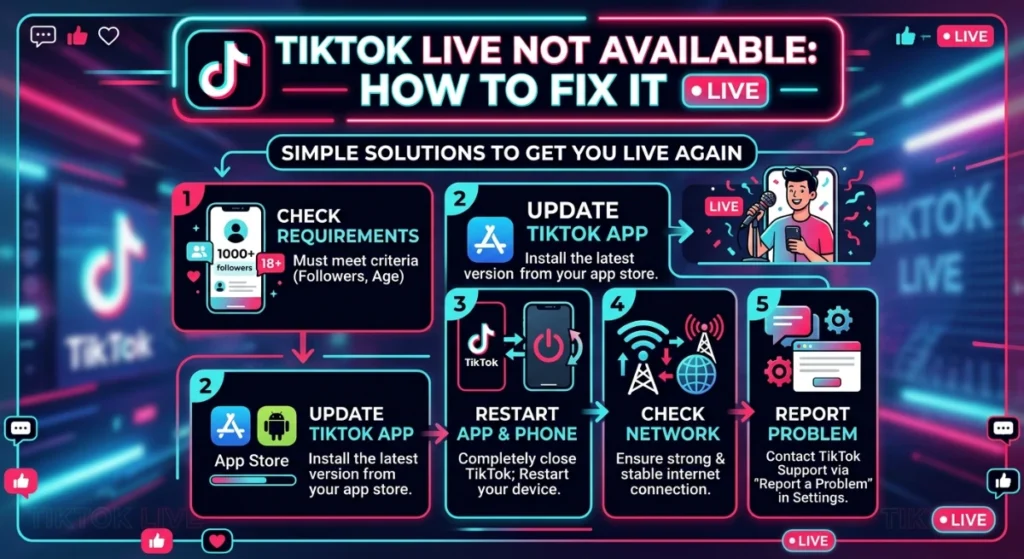
Step 1: Check Your Follower Count and Age
Go to your profile and look at your followers. If you’re under the limit, the fix is to grow your account. See the tips at the end.
Then check your birthday in Settings and privacy → Account. If the birthday is wrong, contact TikTok support to verify your age.
Step 2: Wait a Little After Hitting the Target
This one surprises many people. TikTok rolls out LIVE in waves, so some eligible creators wait days or weeks before the Go LIVE button appears. If you just reached 1,000 followers, give it a few days before you worry.
Step 3: Update the TikTok App
An old version can hide features.
- Open the Play Store (Android) or App Store (iPhone).
- Search for TikTok and tap Update.
Step 4: Restart the App and Your Phone
Close TikTok fully, restart your phone, and open TikTok again. It sounds too simple, but it fixes many small glitches.
Step 5: Check Your Internet
Switch between Wi-Fi and mobile data. Switching between the two is one of the fixes guides suggest. A weak or unstable connection can hide the LIVE option.
Step 6: Clear the Cache
- Go to Profile → Menu (☰) → Settings and privacy.
- Scroll to Cache & Cellular (or Free up space).
- Tap Clear cache.
Step 7: Log Out and Log In Again
This refreshes your account data. Log out, wait a minute, then log back in.
Step 8: Check for Community Guidelines Issues
Go to Settings and privacy → Account → Account status (the name may differ slightly). Look for warnings or restrictions. LIVE access can be removed temporarily or permanently for policy violations. If you see a violation, you can often appeal it from the same screen.
Step 9: Ask TikTok for Help
If everything looks fine but LIVE is still missing:
- Go to Settings and privacy → Report a problem.
- Choose LIVE → Hosting LIVE → I am unable to access the Go LIVE function. This is the manual access request path some guides suggest.
- Describe the problem and send a screenshot of your follower count.
Step 10: Try Again Later
If nothing works, wait 24 to 72 hours and try once more. Some problems are on TikTok’s side and fix themselves.
Real Example: Ayesha’s Story
Ayesha is a 20-year-old creator who posts cooking videos. She reached 1,050 followers on Monday and was excited to go LIVE that evening. But she saw TikTok LIVE Not Available on her screen, and the Go LIVE button was missing.
Here’s what she did:
- Checked requirements. She had enough followers, her age was correct, and her account was new enough.
- Updated the app. She was using an old version. After updating, nothing changed.
- Cleared cache and restarted her phone. Still nothing.
- Checked account status. There were no warnings.
- Reported the problem through Report a problem → LIVE, with a screenshot.
- Waited two days. On Thursday morning the LIVE button appeared.
She had done everything right. TikTok just needed a little time to switch the feature on. She hosted her first LIVE that week and got 40 viewers.
What this teaches us: Don’t panic, and don’t delete your account or make a new one. Fix the basics, report the issue, and be patient.
Quick Checklist
- 1,000+ followers
- Meet the age requirement
- No violations or restrictions
- App updated
- Good internet
- Cache cleared
- Problem reported to TikTok
- Waited a few days
Tips to Reach the Follower Goal Faster
- Post often. Aim for 4 to 5 short videos a week.
- Pick one niche. Cooking, tech, comedy, or study tips all work. A clear topic builds loyal followers.
- Hook viewers in the first 2 seconds. Start with your best moment.
- Reply to comments, and sometimes with a video.
- Use trending sounds that match your niche.
- Never buy followers. Fake followers can get your account limited and won’t help your LIVEs.
Common Mistakes to Avoid
- Using third-party “LIVE unlock” apps or hacks. These can get your account banned.
- Creating many new accounts to get around limits.
- Ignoring warnings in your account status.
- Giving up too early. Access can take days.
Final Words
When you see TikTok LIVE Not Available, the cause is almost always one of these, you don’t meet a requirement yet, your app needs a refresh, or TikTok hasn’t switched the feature on for you. Work through the steps above in order and you’ll likely find the answer.
If you still can’t go LIVE after all this, keep posting good content. Many creators find the button simply appears after their next small milestone.
Have a question about TikTok LIVE? Leave a comment and I’ll help.
Frequently Asked Questions
Analyze Your TikTok Profile
Use TikView to check your account health and see exactly what’s holding your LIVE access back.